Apple
iOS 27 Indexing: What is it and how to check the progress?

You may have already installed the iOS 27 beta on your iPhone, running through its newest features, and joined the Siri waitlist, but there’s one thing that might still be showing in the Settings, and that’s “Indexing in Progress”.
iOS 27 comes with a revamped search system that is powered by on-device large models. To improve the search, iOS 27 requires you to index your on-device content, including local storage and iCloud, to index their whereabouts.
Once indexed, the system-wide search will improve, and results may appear faster than iOS 26, which is what Apple has said during the WWDC26 keynote.
Every iOS 27 user must go through the indexing process, which takes time. However, the one thing that we’ve noticed is that the time may vary depending on the data.
Some users reported that their indexing has been finished within a week of WWDC26, while others are still seeing the indexing in progress as of today.
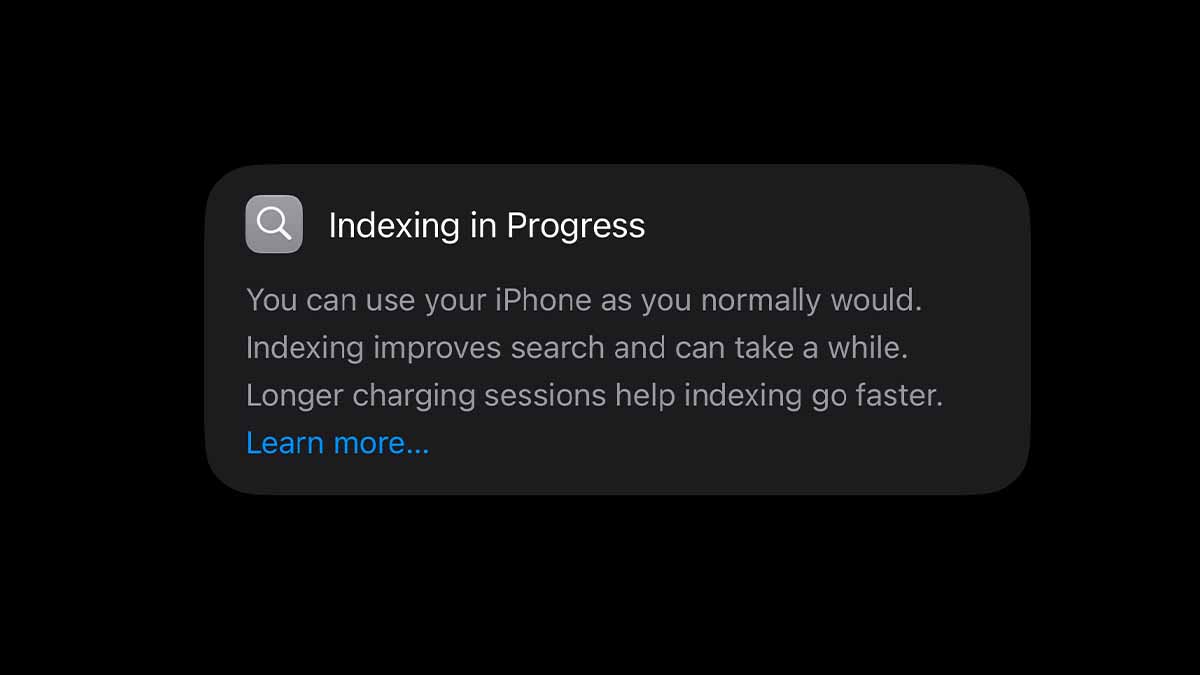

Since we’ve discussed why the indexing is important for iOS 27, there’s a way that will allow you to check its progress. Before we begin, you should know that this trick requires a Mac.
How to check indexing progress
- Connect your iPhone to your Mac and allow the connection request. Use the inbox USB for a better user experience for the latest iPhones.
- Open the Console app on your Mac; you can spotlight search for it or find it in the Launchpad
- Go to the Action menu and enable the “Include Debug Messages” option
- Click on the iPhone model from the left console bar. It doesn’t appear there; reconnect your iPhone to the Mac.
- Enter “spotlight indexing progress” in the console’s search bar (on the top right corner)
- Tap on the start button (with the play icon)
- Now go to the iPhone and open Settings
- Once this is done, the Indexing progress should be visible in the bottom half of the console.