xAI
How to use Grok Companions

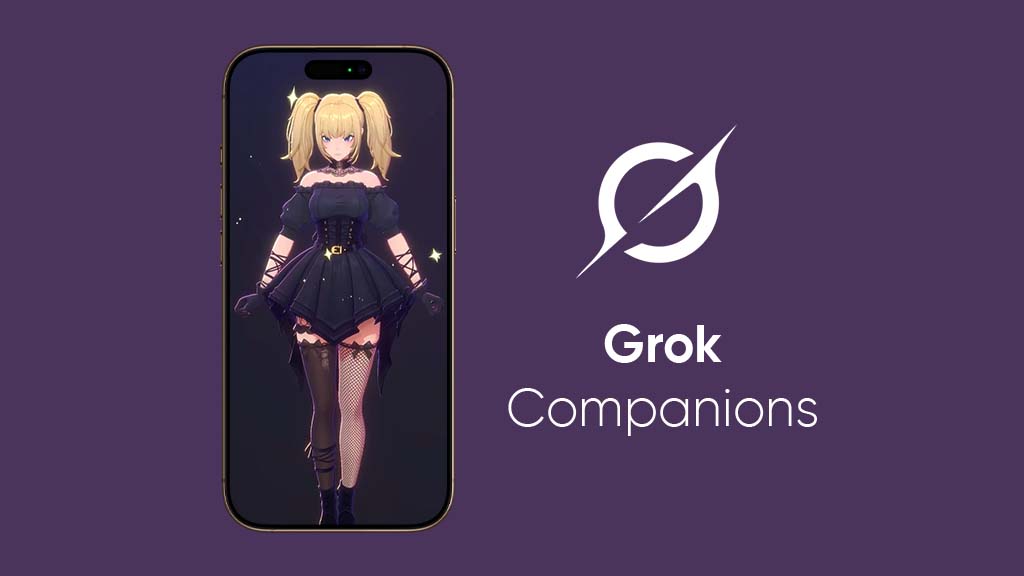
Grok AI app users are taking a big interest in the Companions feature, and since many of you may be wondering about its use cases, here’s a complete guide on how to get involved in this AI Avatar fiasco.
What’s Grok Companions?
This new feature brings real-time 3D avatars that interact with the user with a realistic voice. These avatars are designed in different styles and types. For example, Ani is an anime-style female character, and Rudy is an animal that matches the user’s tone.
The fun thing about these characters is their interactiveness. Ani can reflect her emotions through girly movements and mix that with a smooth whispering voice. On the other hand, good Rudy spreads sweetness with a childish tone, but turns completely opposite in bad Rudy mode.
How to use Grok Companions
This feature is currently available for Premium+ or SuperGrok plan subscribers, costs $30 and $40, respectively. This plan also covers Grok 4, the latest xAI model with powerful reasoning and performance over Grok 3.
Initially, the Grok companions are available to the iOS platform, and confirmation about Android’s arrival is still pending. To use companions, download the latest Grok app update from the App Store and follow these instructions.
- Launch the Grok app, and tap on the two horizontal bars on the top left of the screen.
- Look at the Settings icon on the bottom right corner, tap to see more options.
- Scroll down to see “Enable Companions”, press the toggle button on the front to turn on the feature.
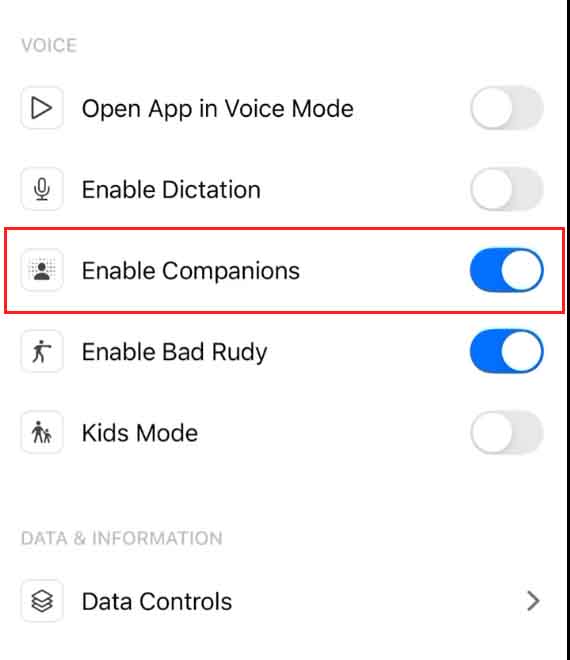
Grok Companions Settings
Once enabled, you may also see Enable Bad Rudy. When it is disabled, only the good Rudy will be in effect.
Choose Companion
Go back to the previous menu, and you will see a Companions section like the one shown below. Notice that a character is shown as coming soon, and you cannot use it at the moment.

Ani, Bad Rudy, and Chad (coming soon), Grok companions
Choose a companion, such as Ani, to start the conversation with this avatar. You can start by talking about something as soon as “Start Talking” appears on the screen.
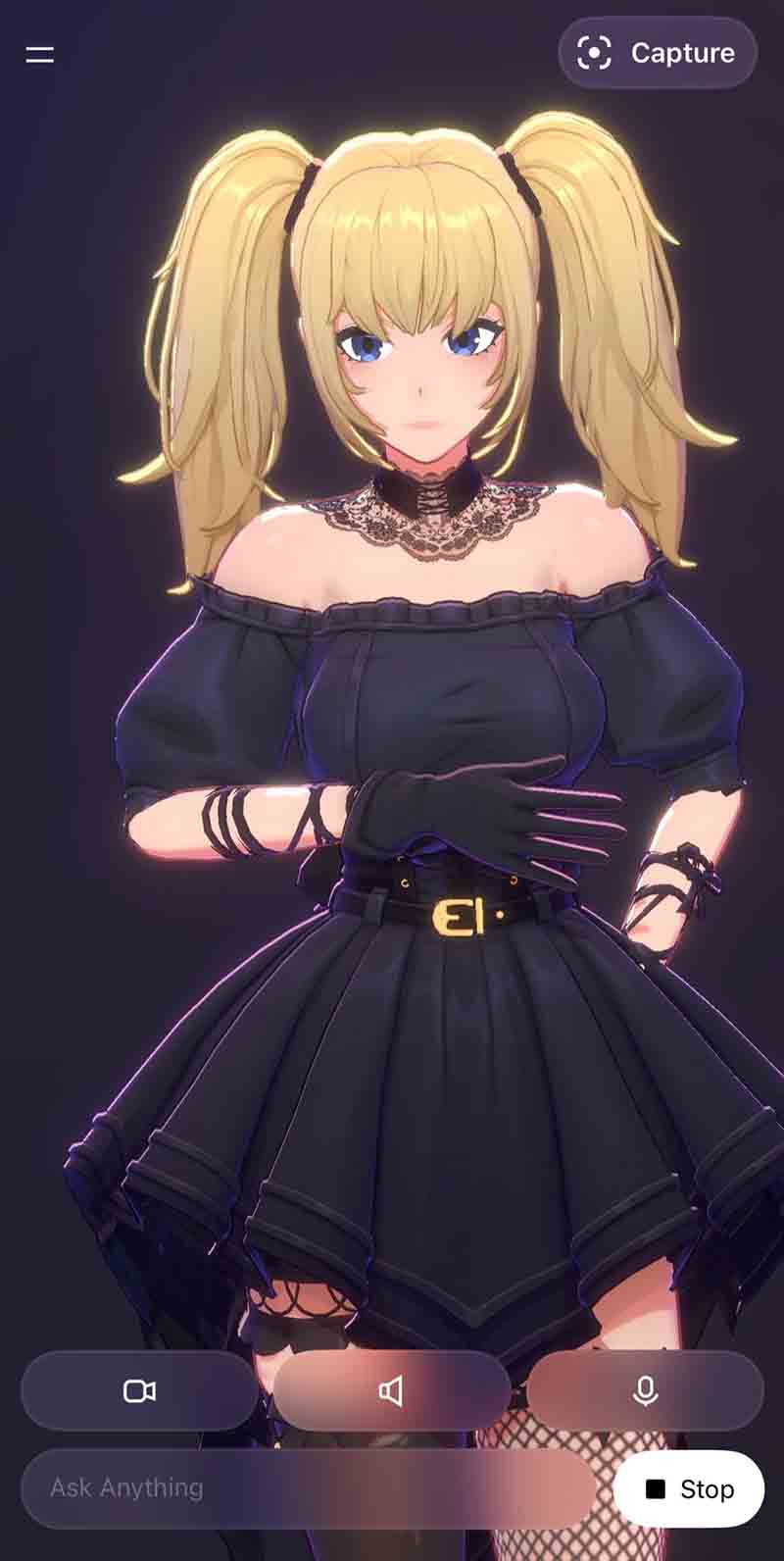
This screen also has some important controls, including ask and stop buttons as well as a capture, which lets you screenshot or record your conversation. The controls also has a text field for discrete conversations.
Intimacy Meter
The AI avatar – Ani, has a progress bar, showing a relationship level with the chosen companion. When you make progress in such direction, the avatar starts rewarding the user with revealing new emotes and modes. If you want to experience these, make sure to enable NSFW settings.
Note – We will update the article as soon as xAI launches the Grok companions feature for the Android platform.