xAI
xAI Grok launches Voice Dictation feature

Grok, the AI assistant created by xAI, received a new voice dictation feature for its mobile application. It enables users to send messages by recording audio notes rather than typing them.
The feature simplifies interaction with Grok. Users open the app, tap the microphone icon, speak their message, and submit the recording. Grok transcribes the audio into text and generates a response based on the transcribed query.
“Send messages to Grok easier than ever. Record your note, hit submit, and let Grok do the rest. Try it in the app now!” wrote the company on X.
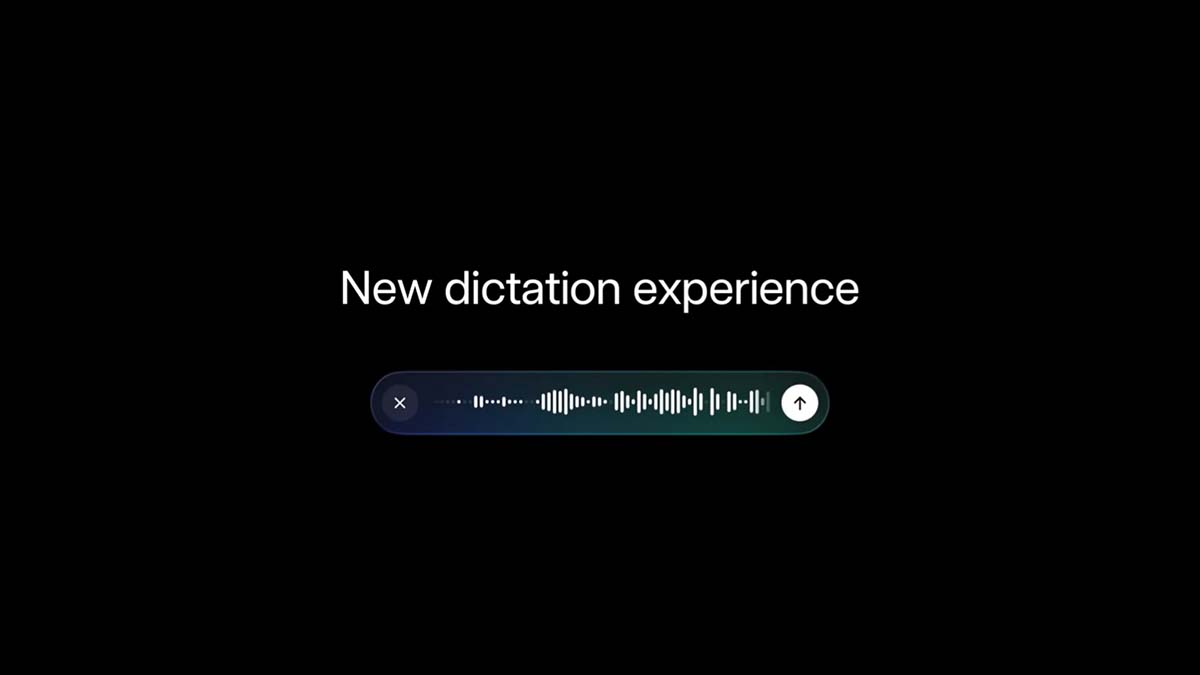
The AI firm also posted a video demonstration of the feature, showing the process on a smartphone screen with the Grok app interface. The user records a voice message: “Hey Grok, I’ll be in Austin this weekend. What are some fun things to do?” The app displays a waveform during recording, then transcribes the words accurately.
Grok responds with a detailed list of suggestions tailored to Austin. Recommendations include live music venues such as The Mohawk, which is known for hosting outdoor shows and showcasing local bands. It also highlights events like the Austin Humane Society’s 10th Annual Puppy Bowl. Additional ideas cover food options, outdoor activities, and cultural spots, presented in clear paragraphs for easy reading.
This voice input method supports hands-free use. It benefits situations where typing is inconvenient, such as walking, driving, or multitasking. The interface includes simple controls: a cancel button, a playback option, and a submit button. After submission, the conversation continues as usual, with Grok’s reply appearing in the chat.
The voice dictation feature is rolling out for the Grok app on iOS and Android devices. No additional setup is required beyond updating the app.
This addition builds on Grok’s existing capabilities, making interactions accessible and natural. Voice dictation aligns with common mobile features in other apps, providing a straightforward way to communicate complex questions without manual typing.
How to use
- Open the Grok app on your iOS or Android device and enter an existing conversation or start a new one.
- At the bottom of the screen, locate the message input bar and tap the microphone icon on the right side.
- Begin speaking clearly once the recording interface appears. A colorful waveform will visualize your voice input in real time, along with controls including a cancel button (X), a playback option, and a submit button.
- Finish speaking. The app automatically stops recording and transcribes your audio to text, displaying the result directly in the message input field.
- Review the transcribed text. You can play back the audio if needed to verify accuracy.
If the transcription is correct, tap the submit arrow to send the message. - Grok will process the text and display its response in the conversation thread.