xAI
How to use xAI’s Grokipedia

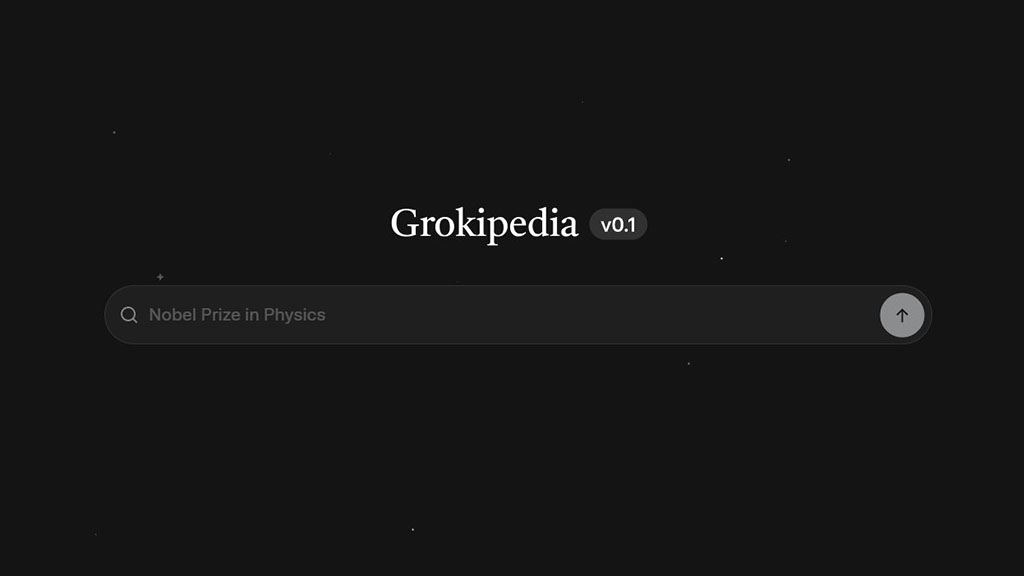
Grokipedia is now available to everyone on the internet, an online encyclopedia using xAI’s Grok AI to distribute information for users, and here’s how you can use this platform and navigate through the UI.
How to use Grokipedia
Go to Grokipedia, and here you will see a home page with a Grokipedia logo, followed by a search bar.
Tips
- You can use this domain on web and mobile platforms.
- Grokipedia can be accessed without an account, similar to Wikipedia
For beginners, the search bar shows an example query with labels, which refreshes in seconds.
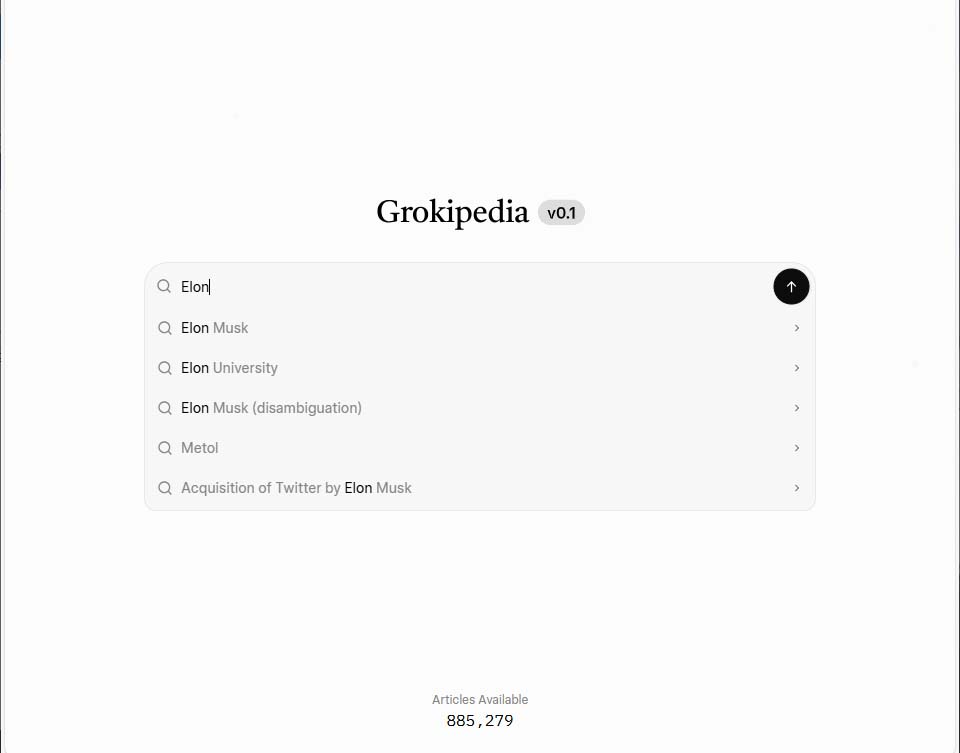
When you type something, Grokipedia will show autocomplete with related searches. Use the mouse pointer to select a suggested search or complete the entire query and hit enter or the on-screen send button.
Result Page
Here’s the page structure.
- Table of Contents on the left side
- Main content on the right
- Header includes search, theme, edits, and user profile
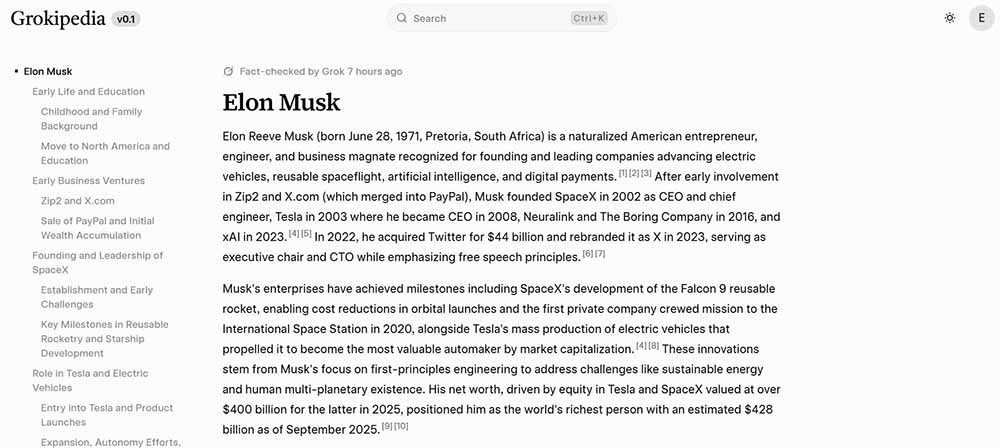
Table of contents
The desktop site shows a full version of a details page, including the left bar with threaded jump links to specific content. We can expect improvements such as collapsible items in the near future. However, a compact view such as a mobile device won’t facilitate with table of contents.
Main content
This page was created by Grok AI using information from online articles and web pages.
The page has a heading and jump links to the source, which you can use to verify the information. Besides the heading, you will see a link icon, which lets you copy a shareable link to the Grokipedia page. These links are available for all headings, which let you share the page with a pre-defined page jump.
At the bottom, you can check all of the references for articles and web pages arranged in numerical order.
Content Options
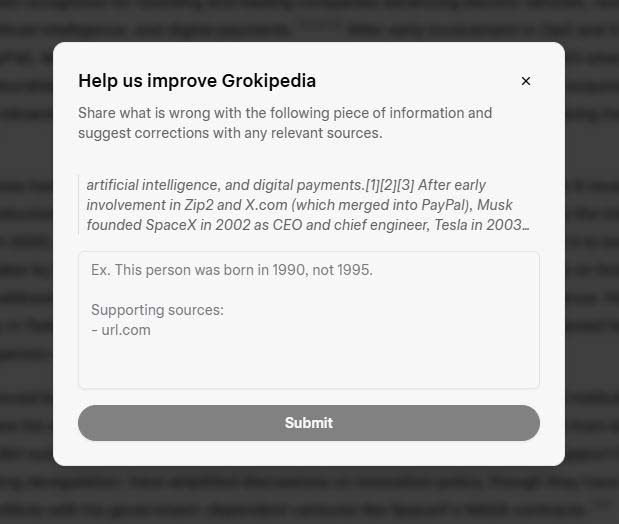
Grokipedia has some user-centric features. If you select a piece of content, the page will pop up options:
- Copy
- Ask Grok
- It’s Wrong
Ask Grok will raise a question about the selected text and redirect you to Grok.com for a detailed answer. On the other hand, It’s Wrong will let you raise a dispute about specific content. All you need to do is share the right information with source links to back your claim.
Header
Search bar
- This section has a search bar, which works similarly to the home screen. You can Ctrl+K shortcut to launch a search on a page.
Theme
- Tap on the icon to switch between light, dark, or go with the system’s selection.
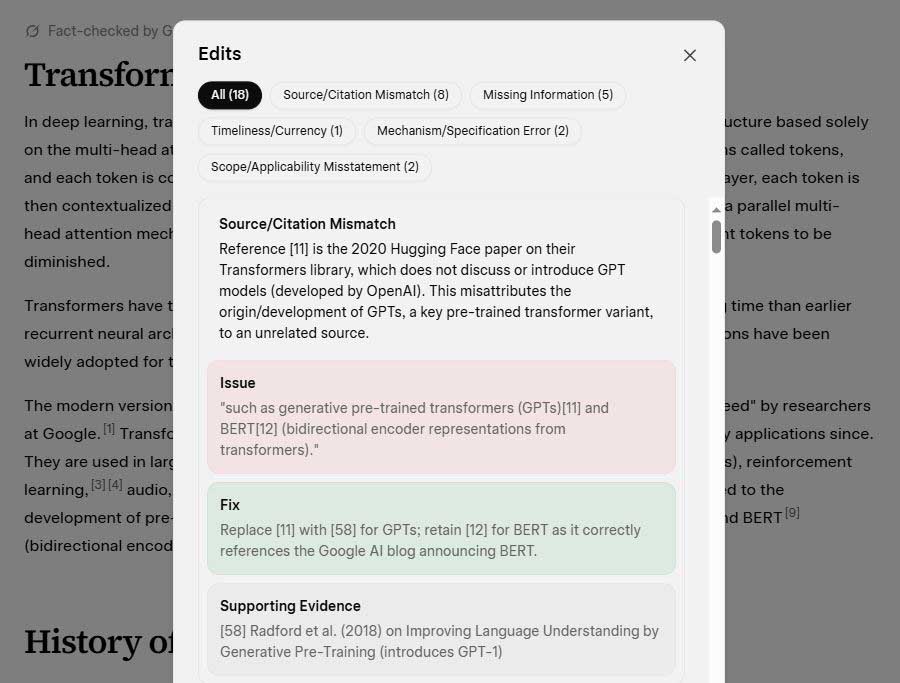
See Edits
This feature lets you see all of the issues and information that are disputed or accepted as the correct answer against the curated version by the AI in the first place. The AI is also categorizing edited information to help you check specific edits.
Profile
Grokipedia supports X, Google, Email, or Apple accounts for login. If you don’t have any of these, start fresh with a new sign-up. You should know that Grokipedia is an xAI product, and new accounts’ data will be hosted on the company’s server.
Though Grokipedia can be used without an account, you will need to sign in to edit a page’s information.
Early Bugs
Grokipedia v0.1 comes with some bugs and early experience issues, which you may encounter until the next release.